
Android SQLite is open source relational database which can be used for performing crud operations.
You don’t have to do explicit installation for it. It is available by default in android.
Let’s start with simple example:
Database Table structure:
Table Name: Country
|
Column
|
Data type
|
Primary key
|
|---|---|---|
|
Id
|
Integer
|
Yes
|
|
CountryName
|
Text
|
No
|
|
Population
|
Long |
No
|
Source code:
Step 1 : Creating Project
Create an android application project named “SQLiteDatabaseCRUDExample”.
Step 2: Creating Layout
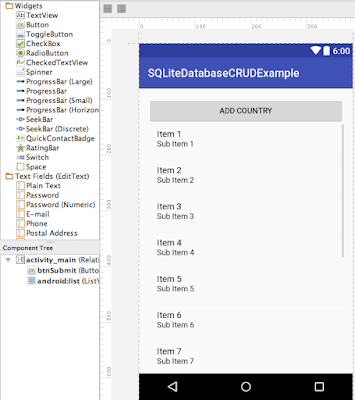
Change res ->layout -> activity_main.xml as below:
You will see below screen in design view.
Step 3: Create Country class
Create a country class which will correspond to Country table in SQLite database.
package com.java2blog.sqlitedatabasecrudexample;
/*
 * This is our model class and it corresponds to Country table in database
 */

import static android.R.attr.name;

public class Country{

    int id;
    String countryName;
    long population;

    public Country() {
        super();
    }
    public Country(int i, String countryName,long population) {
        super();
        this.id = i;
        this.countryName = countryName;
        this.population=population;
    }

    // constructor
    public Country(String countryName, long population){
        this.countryName = countryName;
        this.population = population;
    }
    public int getId() {
        return id;
    }
    public void setId(int id) {
        this.id = id;
    }
    public String getCountryName() {
        return countryName;
    }
    public void setCountryName(String countryName) {
        this.countryName = countryName;
    }
    public long getPopulation() {
        return population;
    }
    public void setPopulation(long population) {
        this.population = population;
    }

}
Step 4: Create SQLiteDatabaseHandler for defining database operations.
We will create a class called SQLiteDatabaseHandler which will extend SQLiteOpenHelper and override onCreate and OnUpdate method.
We will also add some CRUD methods.
- addCountry
- getCountry
- getAllCountries
- updateCountry
- deleteCountry
- delelteAllCountries
package com.java2blog.sqlitedatabasecrudexample;
import android.content.ContentValues;
import android.database.Cursor;
import android.database.sqlite.SQLiteOpenHelper;
import android.content.Context;
import android.database.sqlite.SQLiteDatabase;

import java.util.ArrayList;
import java.util.List;

public class SQLiteDatabaseHandler extends SQLiteOpenHelper {

    // All Static variables
    // Database Version
    private static final int DATABASE_VERSION = 1;

    // Database Name
    private static final String DATABASE_NAME = "countryData";

    // Country table name
    private static final String TABLE_COUNTRY= "Country";

    // Country Table Columns names
    private static final String KEY_ID = "id";
    private static final String COUNTRY_NAME = "CountryName";
    private static final String POPULATION = "Population";

    public SQLiteDatabaseHandler(Context context) {
        super(context, DATABASE_NAME, null, DATABASE_VERSION);
    }

    // Creating Tables
    @Override
    public void onCreate(SQLiteDatabase db) {
        String CREATE_COUNTRY_TABLE = "CREATE TABLE " + TABLE_COUNTRY + "("
                + KEY_ID + " INTEGER PRIMARY KEY," + COUNTRY_NAME + " TEXT,"
                + COUNTRY_NAME + " LONG" + ")";
        db.execSQL(CREATE_COUNTRY_TABLE);
    }

    // Upgrading database
    @Override
    public void onUpgrade(SQLiteDatabase db, int oldVersion, int newVersion) {
        // Drop older table if existed
        db.execSQL("DROP TABLE IF EXISTS " + TABLE_COUNTRY);
        // Create tables again
        onCreate(db);
    }

    /**
     * All CRUD(Create, Read, Update, Delete) Operations
     */

    // Adding new country
    void addCountry(Country country) {
        SQLiteDatabase db = this.getWritableDatabase();

        ContentValues values = new ContentValues();
        values.put(COUNTRY_NAME, country.getCountryName()); // Country Name
        values.put(POPULATION, country.getPopulation()); // Country Population

        // Inserting Row
        db.insert(TABLE_COUNTRY, null, values);
        db.close(); // Closing database connection
    }

    // Getting single country
    Country getCountry(int id) {
        SQLiteDatabase db = this.getReadableDatabase();

        Cursor cursor = db.query(TABLE_COUNTRY, new String[] { KEY_ID,
                        COUNTRY_NAME, POPULATION }, KEY_ID + "=?",
                new String[] { String.valueOf(id) }, null, null, null, null);
        if (cursor != null)
            cursor.moveToFirst();

        Country country = new Country(Integer.parseInt(cursor.getString(0)),
                cursor.getString(1), cursor.getLong(2));
        // return country
        return country;
    }

    // Getting All Countries
    public List getAllCountries() {
        List countryList = new ArrayList();
        // Select All Query
        String selectQuery = "SELECT  * FROM " + TABLE_COUNTRY;

        SQLiteDatabase db = this.getWritableDatabase();
        Cursor cursor = db.rawQuery(selectQuery, null);

        // looping through all rows and adding to list
        if (cursor.moveToFirst()) {
            do {
                Country country = new Country();
                country.setId(Integer.parseInt(cursor.getString(0)));
                country.setCountryName(cursor.getString(1));
                country.setPopulation(cursor.getLong(2));
                // Adding country to list
                countryList.add(country);
            } while (cursor.moveToNext());
        }

        // return country list
        return countryList;
    }

    // Updating single country
    public int updateCountry(Country country) {
        SQLiteDatabase db = this.getWritableDatabase();

        ContentValues values = new ContentValues();
        values.put(COUNTRY_NAME, country.getCountryName());
        values.put(POPULATION, country.getPopulation());

        // updating row
        return db.update(TABLE_COUNTRY, values, KEY_ID + " = ?",
                new String[] { String.valueOf(country.getId()) });
    }

    // Deleting single country
    public void deleteCountry(Country country) {
        SQLiteDatabase db = this.getWritableDatabase();
        db.delete(TABLE_COUNTRY, KEY_ID + " = ?",
                new String[] { String.valueOf(country.getId()) });
        db.close();
    }

    // Deleting all countries
    public void deleteAllCountries() {
        SQLiteDatabase db = this.getWritableDatabase();
        db.delete(TABLE_COUNTRY,null,null);
        db.close();
    }

    // Getting countries Count
    public int getCountriesCount() {
        String countQuery = "SELECT  * FROM " + TABLE_COUNTRY;
        SQLiteDatabase db = this.getReadableDatabase();
        Cursor cursor = db.rawQuery(countQuery, null);
        cursor.close();

        // return count
        return cursor.getCount();
    }
}
Step 5: Creating layout for Row
- Go to res -> layout
- right click on layout
- Click on New -> File.
- Create a file named “row_item.xml” and paste below code in row_item.xml.
Step 6: Creating ArrayAdapter for ListView
package com.java2blog.sqlitedatabasecrudexample;

import android.app.Activity;
import android.util.Log;
import android.view.Gravity;
import android.view.LayoutInflater;
import android.view.View;
import android.view.ViewGroup;
import android.widget.BaseAdapter;
import android.widget.Button;
import android.widget.EditText;
import android.widget.PopupWindow;
import android.widget.TextView;
import java.util.ArrayList;

public class CustomCountryList extends BaseAdapter {
    private Activity context;
    ArrayList countries;
    private PopupWindow pwindo;
    SQLiteDatabaseHandler db;
    BaseAdapter ba;

    public CustomCountryList(Activity context, ArrayList countries,SQLiteDatabaseHandler db) {
        this.context = context;
        this.countries=countries;
        this.db=db;
    }

    public static class ViewHolder
    {
        TextView textViewId;
        TextView textViewCountry;
        TextView textViewPopulation;
        Button editButton;
        Button deleteButton;
    }
    @Override
    public View getView(int position, View convertView, ViewGroup parent) {
        View row = convertView;
            LayoutInflater inflater = context.getLayoutInflater();
            ViewHolder vh;
            if (convertView == null) {
                vh = new ViewHolder();
                row = inflater.inflate(R.layout.row_item, null, true);

                        vh.textViewId = (TextView) row.findViewById(R.id.textViewId);
                        vh.textViewCountry = (TextView) row.findViewById(R.id.textViewCountry);
                        vh.textViewPopulation = (TextView) row.findViewById(R.id.textViewPopulation);
                        vh.editButton = (Button) row.findViewById(R.id.edit);
                        vh.deleteButton = (Button) row.findViewById(R.id.delete);

                // store the holder with the view.
                row.setTag(vh);
            } else {

                    vh = (ViewHolder) convertView.getTag();

            }

            vh.textViewCountry.setText(countries.get(position).getCountryName());
            vh.textViewId.setText("" + countries.get(position).getId());
            vh.textViewPopulation.setText("" + countries.get(position).getPopulation());
            final int positionPopup = position;
            vh.editButton.setOnClickListener(new View.OnClickListener() {
                @Override
                public void onClick(View view) {

                    Log.d("Save: ", "" + positionPopup);
                    editPopup(positionPopup);

                }
            });
            vh.deleteButton.setOnClickListener(new View.OnClickListener() {
                @Override
                public void onClick(View view) {
                    Log.d("Last Index", "" + positionPopup);
                    //     Integer index = (Integer) view.getTag();
                    db.deleteCountry(countries.get(positionPopup));

                    //      countries.remove(index.intValue());
                    countries = (ArrayList) db.getAllCountries();
                    Log.d("Country size", "" + countries.size());
                    notifyDataSetChanged();
                }
            });
        return  row;
    }

    public long getItemId(int position) {
        return position;
    }

    public Object getItem(int position) {
        return position;
    }

    public int getCount() {
        return countries.size();
    }

  public void editPopup(final int positionPopup)
  {
      LayoutInflater inflater = context.getLayoutInflater();
      View layout = inflater.inflate(R.layout.edit_popup,
              (ViewGroup) context.findViewById(R.id.popup_element));
      pwindo = new PopupWindow(layout, 600, 670, true);
      pwindo.showAtLocation(layout, Gravity.CENTER, 0, 0);
      final EditText countryEdit = (EditText) layout.findViewById(R.id.editTextCountry);
      final EditText populationEdit = (EditText) layout.findViewById(R.id.editTextPopulation);
      countryEdit.setText(countries.get(positionPopup).getCountryName());
      populationEdit.setText("" + countries.get(positionPopup).getPopulation());
      Log.d("Name: ", "" + countries.get(positionPopup).getPopulation());
      Button save = (Button) layout.findViewById(R.id.save_popup);
      save.setOnClickListener(new View.OnClickListener() {
          @Override
          public void onClick(View view) {
              String countryStr = countryEdit.getText().toString();
              String population = populationEdit.getText().toString();
              Country country = countries.get(positionPopup);
              country.setCountryName(countryStr);
              country.setPopulation(Long.parseLong(population));
              db.updateCountry(country);
              countries = (ArrayList) db.getAllCountries();
              notifyDataSetChanged();
              for (Country country1 : countries) {
                  String log = "Id: " + country1.getId() + " ,Name: " + country1.getCountryName() + " ,Population: " + country1.getPopulation();
                  // Writing Countries to log
                  Log.d("Name: ", log);
              }
              pwindo.dismiss();
          }
      });
  }
}
This class is used to populating data for ListVIew. getView method is get called for drawing each row.When you click on edit, you will see a popup to edit country Name and population. If you click on delete, country will be deleted from listview and SQLite database.
Step 7: Creating MainActivity
Change src/main/packageName/MainActivity.java as below:
package com.java2blog.sqlitedatabasecrudexample;

import android.app.Activity;
import android.support.v7.app.AppCompatActivity;
import android.os.Bundle;
import android.util.Log;
import android.view.Gravity;
import android.view.LayoutInflater;
import android.view.View;
import android.view.ViewGroup;
import android.widget.AdapterView;
import android.widget.BaseAdapter;
import android.widget.Button;
import android.widget.EditText;
import android.widget.ListView;
import android.widget.PopupWindow;
import android.widget.Toast;
import java.util.ArrayList;

public class MainActivity extends AppCompatActivity {

    ArrayList countries;
    SQLiteDatabaseHandler db;
    Button btnSubmit;
    PopupWindow pwindo;
    Activity activity;
    ListView listView;
    CustomCountryList customCountryList;

    @Override
    protected void onCreate(Bundle savedInstanceState) {
        super.onCreate(savedInstanceState);
        setContentView(R.layout.activity_main);
        activity=this;
        db= new SQLiteDatabaseHandler(this);
        listView = (ListView) findViewById(android.R.id.list);
        btnSubmit = (Button) findViewById(R.id.btnSubmit);
        btnSubmit.setOnClickListener(new View.OnClickListener() {
            @Override
            public void onClick(View view) {
                addPopUp();
                    }
                });
        Log.d("MainActivity: ", "Before reading mainactivity");
        countries = (ArrayList) db.getAllCountries();

            for (Country country : countries) {
                String log = "Id: " + country.getId() + " ,Name: " + country.getCountryName() + " ,Population: " + country.getPopulation();
                // Writing Countries to log
                Log.d("Name: ", log);
            }

                CustomCountryList customCountryList = new CustomCountryList(this, countries, db);
                listView.setAdapter(customCountryList);

                listView.setOnItemClickListener(new AdapterView.OnItemClickListener() {
                    @Override
                    public void onItemClick(AdapterView adapterView, View view, int position, long l) {
                        Toast.makeText(getApplicationContext(), "You Selected " + countries.get(position).getCountryName() + " as Country", Toast.LENGTH_SHORT).show();
                    }
                });
    }

    public void addPopUp() {
        LayoutInflater inflater = activity.getLayoutInflater();
        View layout = inflater.inflate(R.layout.edit_popup,
                (ViewGroup) activity.findViewById(R.id.popup_element));
        pwindo = new PopupWindow(layout, 600, 670, true);
        pwindo.showAtLocation(layout, Gravity.CENTER, 0, 0);
        final EditText countryEdit = (EditText) layout.findViewById(R.id.editTextCountry);
        final EditText populationEdit = (EditText) layout.findViewById(R.id.editTextPopulation);

        Button save = (Button) layout.findViewById(R.id.save_popup);
        save.setOnClickListener(new View.OnClickListener() {
            @Override
            public void onClick(View view) {
                String countryStr = countryEdit.getText().toString();
                String population = populationEdit.getText().toString();
                Country country = new Country(countryStr, Long.parseLong(population));
                db.addCountry(country);
                if(customCountryList==null)
                {
                    customCountryList = new CustomCountryList(activity, countries, db);
                    listView.setAdapter(customCountryList);
                }
                customCountryList.countries = (ArrayList) db.getAllCountries();
                ((BaseAdapter)listView.getAdapter()).notifyDataSetChanged();
                for (Country country1 : countries) {
                    String log = "Id: " + country1.getId() + " ,Name: " + country1.getCountryName() + " ,Population: " + country1.getPopulation();
                    // Writing Countries to log
                    Log.d("Name: ", log);
                }
                pwindo.dismiss();
            }
        });
    }
}
When you click on “Add Country” button, you will get a popup.You put Country name and population and Country will be added to the list.
Step 8: Running the app
When you run the app, you will get below screen:
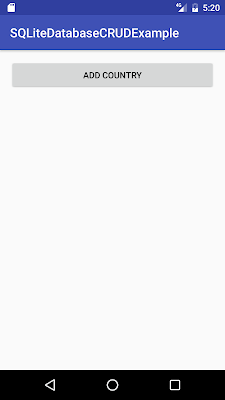
Click on “Add Country” button and you will get below screen. I have put Country Name as India and Population as 10000.
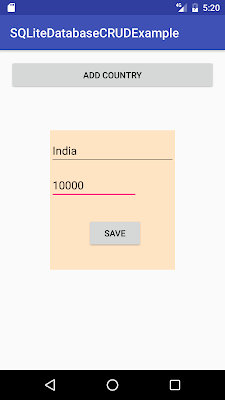
When you click on save, India will be saved to database. You can similarly add China, Bhutan, and Nepal. You will get below screen.
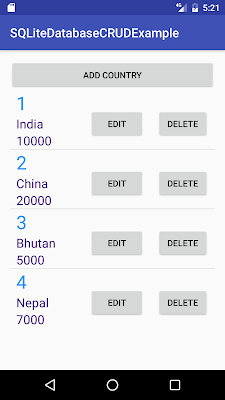
Let’s edit population of china to 20000 to 30000.
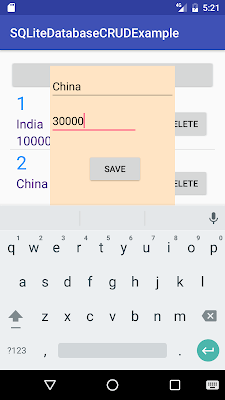
When you click on save, China’s population will be changed to 30000.
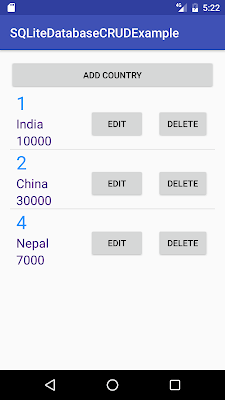
Let’s delete Bhutan from list, click on delete corresponding to Bhutan row. When you click on delete, you will get below screen.

hey
Java2blog team
This tutotial is really helpfull
Thanks
This is very good , excellent , simple article.
you have it in good way