
In previous post, we have seen android JSON parsing tutorial which was very simple. In this tutorial, we are going to use external library Volley for sending HTTP request. You can treat it as a replacement of AsyncTask in previous tutorial.
Why to use Volley rather than AsyncTask.
- Less complex
- Efficient network management.
- Easily customisable
Example :
I have already implemented restful webservices json example. I am going to use same example for implementation of restful web services.
If you are going to deploy above web service then use below url to fetch json data
http://192.168.2.22:8080/JAXRSJsonExample/rest/countries
Here 192.168.2.22 is IP address of my machine. Once you implement this web services on your machine, you should replace it with your ip address.
If you don’t want to implement rest web service yourself and want below json response. You can use below link.
https://cdn.rawgit.com/arpitmandliya/AndroidRestJSONExample/master/countries.json
You will get below Json response from above URL:
[
 {
 "id":1,
 "countryName":"India"
 },
 {
 "id":4,
 "countryName":"China"
 },
 {
 "id":3,
 "countryName":"Nepal"
 },
 {
 "id":2,
 "countryName":"Bhutan"
 }
]
We are getting above JSONArray from rest web service. If you are not familiar with JSON, you can go through Json tutorial. We are going to render above JSON response to android custom listview as below:
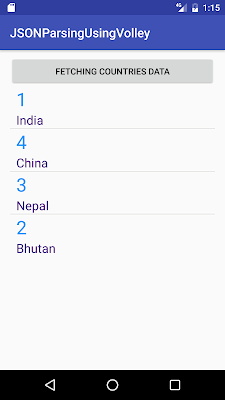
Lets code this example now:
Source code:
Step 1 :Creating Project
Create an android application project named “JSONPasingUsingVolley”.
Step 2 : Add Volley gradle dependency
apply plugin: 'com.android.application'

android {
    compileSdkVersion 25
    buildToolsVersion "25.0.0"
    defaultConfig {
        applicationId "com.java2blog.jsonparsingusingvolley"
        minSdkVersion 15
        targetSdkVersion 25
        versionCode 1
        versionName "1.0"
        testInstrumentationRunner "android.support.test.runner.AndroidJUnitRunner"
    }
    buildTypes {
        release {
            minifyEnabled false
            proguardFiles getDefaultProguardFile('proguard-android.txt'), 'proguard-rules.pro'
        }
    }
}

dependencies {
    compile fileTree(dir: 'libs', include: ['*.jar'])
    androidTestCompile('com.android.support.test.espresso:espresso-core:2.2.2', {
        exclude group: 'com.android.support', module: 'support-annotations'
    })
    compile 'com.android.support:appcompat-v7:25.0.0'
    compile 'com.mcxiaoke.volley:library:1.0.19'
    testCompile 'junit:junit:4.12'
}
Step 3 : Creating Layout
Change res ->layout -> activity_main.xml as below:
We have one button and listview. When you click the button, we are going to populate data in listview by calling restful web services and render it on the listview.
Step 4: Creating layout for Row
- Go to res -> layout
- right click on layout
- Click on New -> File.
- Create a file named “row_item.xml” and paste below code in row_item.xml.
Step 5 : Creating model object Country :
If you notice, we are getting Json array from restful web service which has 4 items. Each item have two attributes id and countryName. We are going to create country object for each item.
package com.java2blog.androidrestjsonexample;
public class Country{
    int id;
    String countryName;

    public Country(int i, String countryName) {
        super();
        this.id = i;
        this.countryName = countryName;
    }
    public int getId() {
        return id;
    }
    public void setId(int id) {
        this.id = id;
    }
    public String getCountryName() {
        return countryName;
    }
    public void setCountryName(String countryName) {
        this.countryName = countryName;
    }
}
Step 6: Creating BaseAdapter for ListView
package com.java2blog.androidrestjsonexample;

import android.app.Activity;
import android.view.LayoutInflater;
import android.view.View;
import android.view.ViewGroup;
import android.widget.BaseAdapter;
import android.widget.TextView;

import com.java2blog.androidrestjsonexample.Country;
import com.java2blog.androidrestjsonexample.R;

import java.util.ArrayList;

public class CustomCountryList extends BaseAdapter {

    private Activity context;
    ArrayList countries;

    public CustomCountryList(Activity context, ArrayList countries) {
     //   super(context, R.layout.row_item, countries);
        this.context = context;
        this.countries=countries;

    }

    public static class ViewHolder
    {
        TextView textViewId;
        TextView textViewCountry;
    }
    @Override
    public View getView(int position, View convertView, ViewGroup parent) {
        View row=convertView;

        LayoutInflater inflater = context.getLayoutInflater();
        ViewHolder vh;
        if(convertView==null) {
            vh=new ViewHolder();
            row = inflater.inflate(R.layout.row_item, null, true);
            vh.textViewId = (TextView) row.findViewById(R.id.textViewId);
            vh.textViewCountry = (TextView) row.findViewById(R.id.textViewCountry);
            // store the holder with the view.
            row.setTag(vh);
        }
        else {
            vh = (ViewHolder) convertView.getTag();
        }

        vh.textViewCountry.setText(countries.get(position).getCountryName());
        vh.textViewId.setText(""+countries.get(position).getId());

        return  row;
    }

    public long getItemId(int position) {
        return position;
    }

    public Object getItem(int position) {
        return position;
    }

    public int getCount() {

        if(countries.size()<=0)
            return 1;
        return countries.size();
    }
}
This class is used to populating data for ListVIew. getView method is get called for drawing each row.
Step 7 : Creating MainActivity
We are going to use JSONArrayRequest class of volley library.
JsonArrayRequest req = new JsonArrayRequest(jsonURl,
                    new Response.Listener() {
                        @Override
                        public void onResponse(JSONArray response) {... , new Response.ErrorListener() {
                            @Override
                            public void onErrorResponse(VolleyError error) {...)
It has three parameters.
- rest web services url which returns JSONArray response.
- Passing Listener which has method called onResponse that will get called when we get response from rest url.
- Passing ErrorListener which has method called onErrorResponse that will get called when we get any error while executing the rest web service url.
You can also use JsonObjectRequest or StringRequest from volley class depend on your need.
Change src/main/packageName/MainActivity.java as below:
package com.java2blog.jsonparsingusingvolley;

import android.app.Activity;
import android.app.ProgressDialog;
import android.os.Bundle;
import android.support.v7.app.AppCompatActivity;
import android.util.Log;
import android.view.View;
import android.widget.AdapterView;
import android.widget.Button;
import android.widget.ListView;
import android.widget.Toast;
import com.android.volley.RequestQueue;
import com.android.volley.Response;
import com.android.volley.VolleyError;
import com.android.volley.toolbox.JsonArrayRequest;
import com.android.volley.toolbox.Volley;

import org.json.JSONArray;
import org.json.JSONException;
import org.json.JSONObject;

import java.net.URL;
import java.util.ArrayList;
import static android.content.ContentValues.TAG;

public class MainActivity extends AppCompatActivity {

    private Button btnSubmit;
    String responseText;
    Activity activity;
    ArrayList countries=new ArrayList();
    private ProgressDialog progressDialog;
    ListView listView;

    // In case if you deploy rest web service, then use below link and replace below ip address with yours
    //http://192.168.2.22:8080/JAXRSJsonExample/rest/countries

    //Direct Web services URL
    private String path = "https://cdn.rawgit.com/arpitmandliya/AndroidRestJSONExample/master/countries.json";

    @Override
    protected void onCreate(Bundle savedInstanceState) {
        super.onCreate(savedInstanceState);
        setContentView(R.layout.activity_main);
        activity = this;
        btnSubmit = (Button) findViewById(R.id.btnSubmit);
        listView = (ListView) findViewById(android.R.id.list);
        btnSubmit.setOnClickListener(new View.OnClickListener() {
            @Override
            public void onClick(View v) {
                countries.clear();

                progressDialog = new ProgressDialog(MainActivity.this);
                progressDialog.setMessage("Fetching conntry data");
                progressDialog.setCancelable(false);
                progressDialog.show();
                //Call WebService
                getWebServiceResponseData();
            }
        });
    }

    protected Void getWebServiceResponseData() {
            JsonArrayRequest req = new JsonArrayRequest(jsonURl,
                    new Response.Listener() {
                        @Override
                        public void onResponse(JSONArray response) {
                            Log.d(TAG, response.toString());
                            if (progressDialog.isShowing())
                                progressDialog.dismiss();

                            // Parsing json response and iterate over each JSON object
                            Log.d(TAG, "data:" + responseText);
                            try {

                                for (int i = 0; i < response.length(); i++) {
                                    JSONObject jsonobject = response.getJSONObject(i);
                                    int id = jsonobject.getInt("id");
                                    String country = jsonobject.getString("countryName");
                                    Log.d(TAG, "id:" + id);
                                    Log.d(TAG, "country:" + country);
                                    Country countryObj = new Country(id, country);
                                    countries.add(countryObj);
                                }
                            } catch (JSONException e) {
                                e.printStackTrace();
                                Toast.makeText(getApplicationContext(),
                                        "Error: " + e.getMessage(),
                                        Toast.LENGTH_LONG).show();
                            }

                            CustomCountryList customCountryList = new CustomCountryList(activity, countries);
                            listView.setAdapter(customCountryList);

                            listView.setOnItemClickListener(new AdapterView.OnItemClickListener() {
                                @Override
                                public void onItemClick(AdapterView adapterView, View view, int position, long l) {
                                    Toast.makeText(getApplicationContext(),"You Selected "+countries.get(position).getCountryName()+ " as Country",Toast.LENGTH_SHORT).show();        }
                            });
                         }
                        },   new Response.ErrorListener() {
                            @Override
                            public void onErrorResponse(VolleyError error) {
                                Toast.makeText(MainActivity.this,error.getMessage(),Toast.LENGTH_LONG).show();
                            }

                        });
                        RequestQueue requestQueue = Volley.newRequestQueue(this);
                        requestQueue.add(req);
            return null;
        }
    }
Step 8: Add internet permission in AndroidManifest.xml
Copy following code:
Put it in AndroidManifest.xml
Done, we have added internet permission to AndroidManifest.xml. Your application must be able to access internet now.
Step 9 : Running the app
When you run the app, you will get below screen:
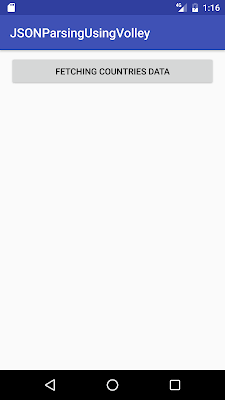
When you click on above button, you will get below screen.
We are done with Android JSON parsing tutorial using Volley. If you are facing any issue, please comment.