In this post , we will see how to set style in excel using apache poi.
You can put cell style with below code:
        // create font
        XSSFFont font= workbook.createFont();
        font.setFontHeightInPoints((short)10);
        font.setFontName("Arial");
        font.setColor(IndexedColors.WHITE.getIndex());
        font.setBold(true);
        font.setItalic(false);

         // Create cell style
        CellStyle style=workbook.createCellStyle();;
        style.setFillPattern(CellStyle.SOLID_FOREGROUND);
        style.setAlignment(CellStyle.ALIGN_CENTER);
        // Setting font to style
        style.setFont(font);

        // Setting cell style
        cell.setCellStyle(style);
Java Program :
package org.arpit.java2blog;
import java.io.File;
import java.io.FileOutputStream;
import java.io.IOException;
import java.util.ArrayList;

import org.apache.poi.ss.usermodel.Cell;
import org.apache.poi.ss.usermodel.CellStyle;
import org.apache.poi.ss.usermodel.IndexedColors;
import org.apache.poi.ss.usermodel.Row;
import org.apache.poi.xssf.usermodel.XSSFFont;
import org.apache.poi.xssf.usermodel.XSSFSheet;
import org.apache.poi.xssf.usermodel.XSSFWorkbook;
public class WriteExcelMain {

 public static void main(String[] args) throws IOException {
  writeFileUsingPOI();
 }

 public static void writeFileUsingPOI() throws IOException
 {
  //create blank workbook
  XSSFWorkbook workbook = new XSSFWorkbook();

  //Create a blank sheet
  XSSFSheet sheet = workbook.createSheet("Country");

  ArrayList data=new ArrayList();
  data.add(new String[]{"Country","Capital","Population"});
  data.add(new Object[]{"India","Delhi",10000});
  data.add(new Object[]{"France","Paris",40000});
  data.add(new Object[]{"Germany","Berlin",20000});
  data.add(new Object[]{"England","London",30000});

  //Iterate over data and write to sheet
  int rownum = 0;
  for (Object[] countries : data)
  {
   Row row = sheet.createRow(rownum++);

   int cellnum = 0;
   for (Object obj : countries)
   {
    Cell cell = row.createCell(cellnum++);
    if(obj instanceof String)
     cell.setCellValue((String)obj);
    else if(obj instanceof Double)
     cell.setCellValue((Double)obj);
    else if(obj instanceof Integer)
     cell.setCellValue((Integer)obj);
    // Setting style only for header
    if(rownum==1)
    {
     CellStyle style=null;
     // Creating a font
        XSSFFont font= workbook.createFont();
        font.setFontHeightInPoints((short)10);
        font.setFontName("Arial");
        font.setColor(IndexedColors.WHITE.getIndex());
        font.setBold(true);
        font.setItalic(false);

        style=workbook.createCellStyle();;
        style.setFillPattern(CellStyle.SOLID_FOREGROUND);
        style.setAlignment(CellStyle.ALIGN_CENTER);
        // Setting font to style
        style.setFont(font);

        // Setting cell style
        cell.setCellStyle(style);
    }
   }

  }
  Row rowGap = sheet.createRow(rownum++);
  Row row = sheet.createRow(rownum++);
  Cell cellTotal = row.createCell(0);
  cellTotal.setCellValue("Total Population");

  // Setting cell formula and cell type
  Cell cell = row.createCell(2);
  cell.setCellFormula("SUM(C2:C5)");
  cell.setCellType(Cell.CELL_TYPE_FORMULA);
  try
  {
   //Write the workbook to the file system
   FileOutputStream out = new FileOutputStream(new File("CountriesDetails.xlsx"));
   workbook.write(out);
   out.close();
   System.out.println("CountriesDetails.xlsx has been created successfully");
  }
  catch (Exception e)
  {
   e.printStackTrace();
  }
  finally {
   workbook.close();
  }
 }
}
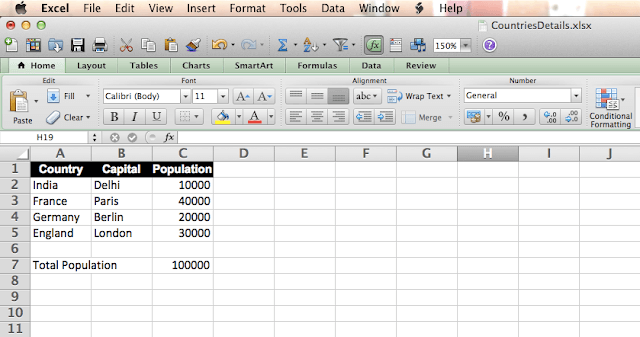
When you run above program, you will get following output:
CountriesDetails.xlsx has been created successfully
Lets see content of CountriesDetails.xlsx now.